How to add liquidity to Intrinsic
Intrinsic enables liquidity providers to allocate their capital within a user-specified price interval.
To add liquidity to Intrinsic:
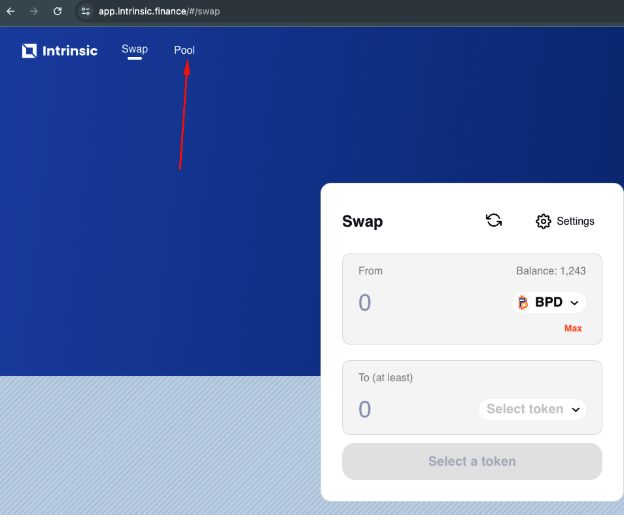
- On the web app, https://app.intrinsic.finance/, click on Pool. It will take you to this page: https://app.intrinsic.finance/#/pool.
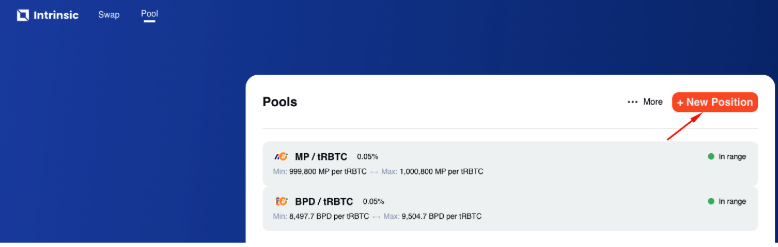
2. In the Pools page, click on “New Position”.
3. Select the first token you would like to add liquidity to.
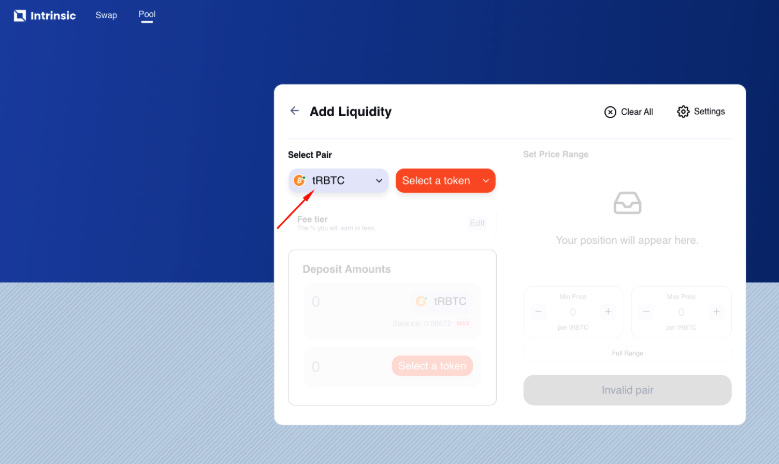
- Select the second token you would like to add liquidity to.
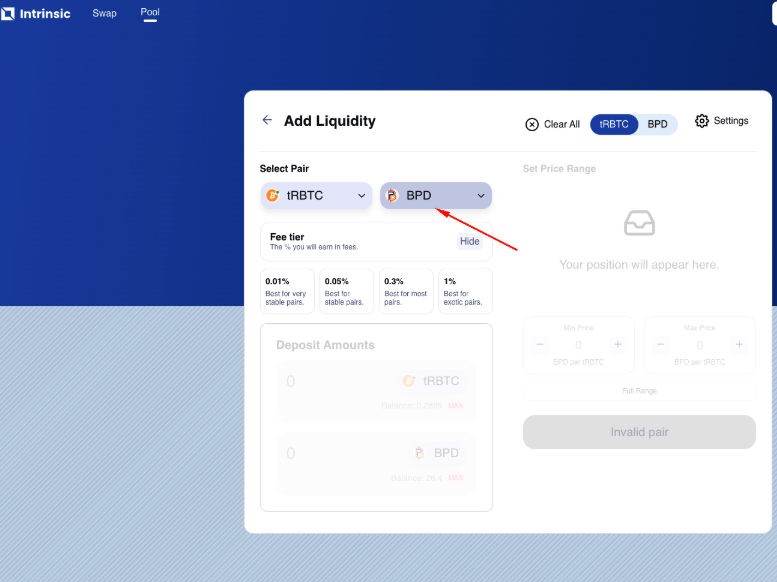
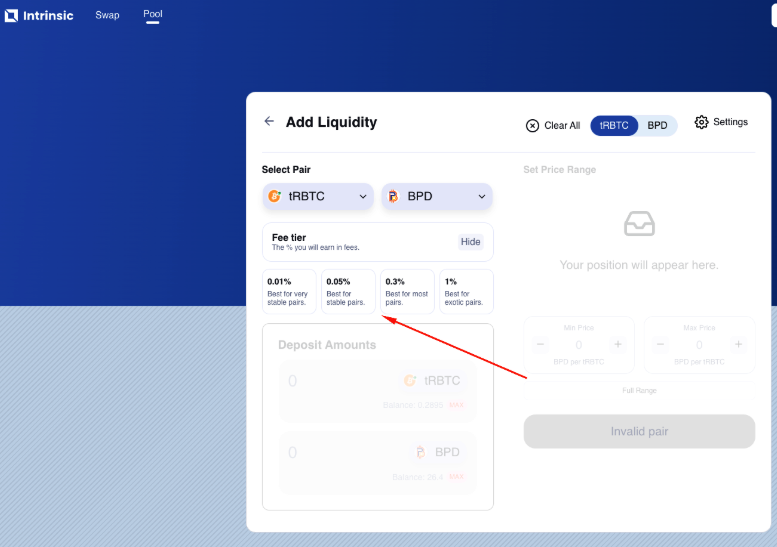
- Choose a fee tier
In Intrinsic, there are four fee tiers to choose from. They are 0.01%, 0.05%, 0.3%, and 1%.
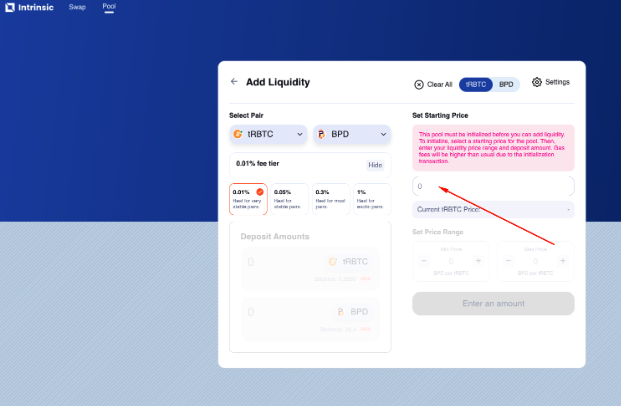
For the specified fee tier, a liquidity pool may or may not exist. If a pool exists, the provided liquidity position will be incorporated into the existing pool. If no such pool exists, a new pool will be created representing the fee tier you’ve chosen.
- Set a Starting price between the 2 tokens you are providing liquidity for.
-
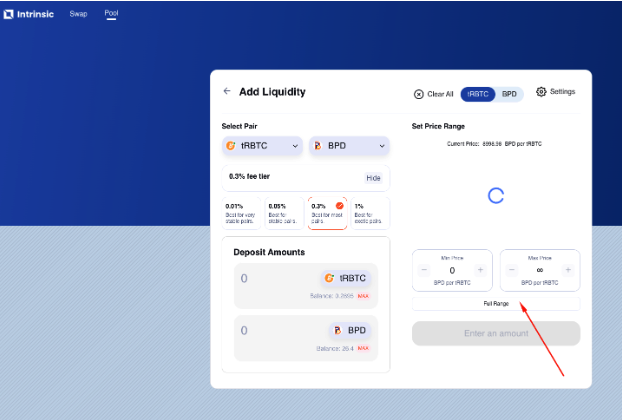
Choose a Min price and Max price range of the liquidity. If you do not want to set a specific price range, you can choose Full Range to provide liquidity across a full price range.
Entering a Min Price and Max Price concentrates your liquidity provision in the specified price range and if the token price moves outside of the set custom price range then the liquidity position will be out of range and will no longer earn fees until the price moves back within your price range.
Choosing Full Range will set your Min price to 0 and your Max price to infinity, and this option is only available when providing liquidity to a pool that already exists.
- Enter your desired token amounts for liquidity provision, or choose "Max" to use all available funds from your wallet.
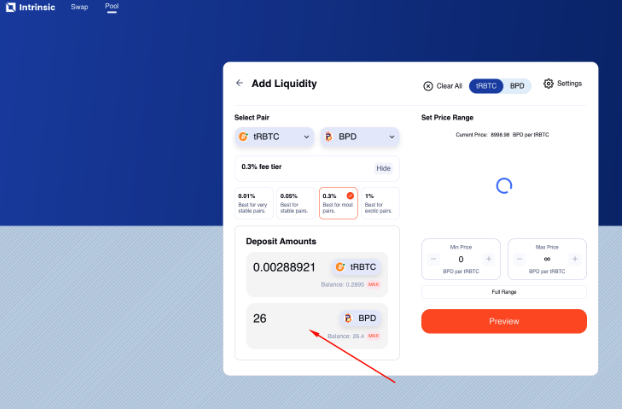
- Approve the token that you want to provide liquidity for. This will initiate a confirmation in your wallet to allow Intrinsic access to the tokens. After you press the Orange approve button and then press confirm in your wallet, you will see the screenshot below.
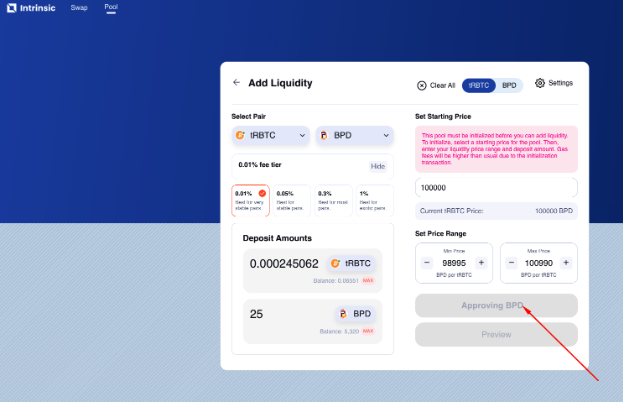
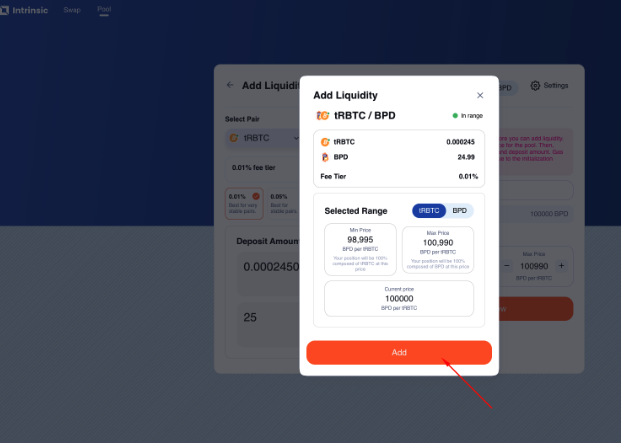
- Preview the liquidity you’ve provided, then press the Add button to add the liquidity and confirm again in your wallet that the transaction is complete.